

This feature has been languishing in a branch for what feels like ages now, and it’s finally merged in.
You can now browse and manage your uploaded media as well as select from it when adding images to posts and comments. It also has infinite scroll enabled so you can just scroll through all your media (well all media you’ve uploaded since Lemmy started actually tracking them in 0.19 point something.
Browsing / Managing Media
From Profile -> Media or Quick Settings -> Media, you can browse your uploads, copy the image link from them or delete them.


Using the Media Browser in Posts/Comments
The media browser has been tied into the post form as well as the markdown editor. In both editors, the “Add image” button is now a menu where you can select either “Upload an image…” or “Chose from Existing Media…”.
“Upload” works the same as it has before (just the dedicated button is in the drop down menu now). You can also just paste the image into the markdown editor / image URL field as before.
If you are inserting the image, then you can also set the alt text for the image from the gallery chooser before it’s added to the content. In the “create post” form, you still need to use the “alt text” field on the form itself. Scratch that. I made the post form also accept the alt text from the media browser.
Adding an Image From the Media Browser into a Comment or Post Body

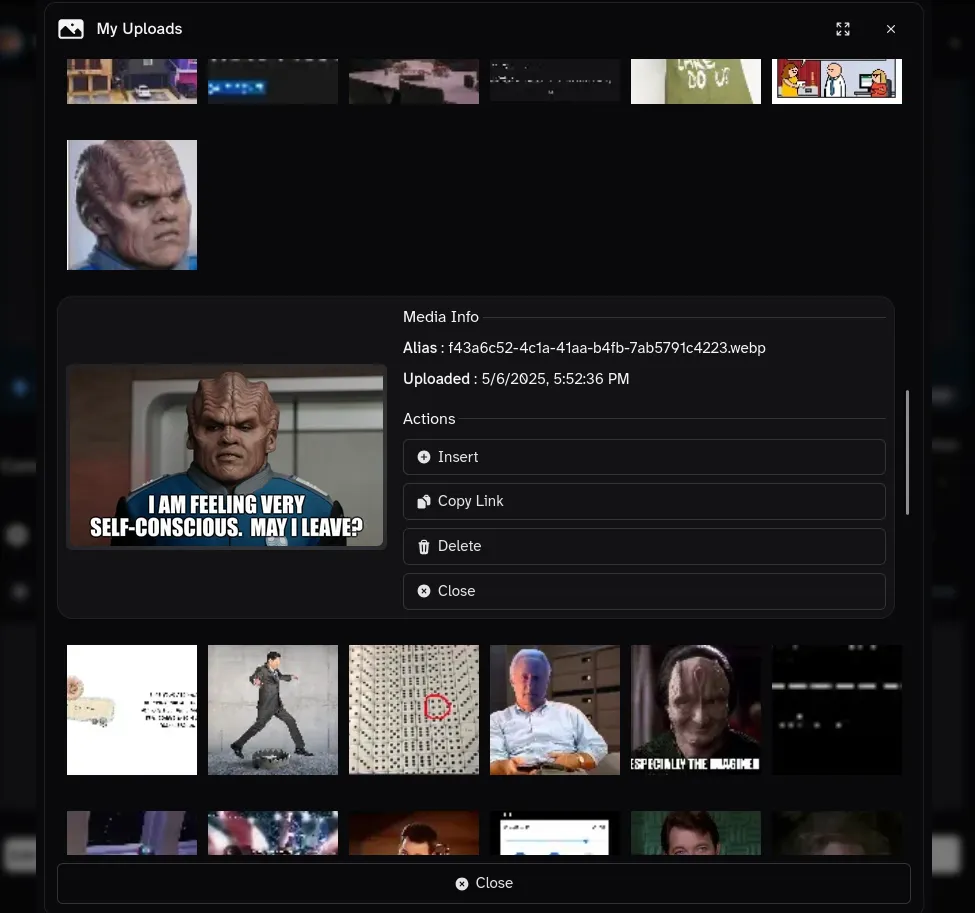


Selecting a Post Image From the Media Gallery


You must log in or register to comment.
Tesseract is spectacular, thanks for your hard work.
There’s a few more things I want to add to the media browser if I have time:
- [Work in Progress] Add “Search” button in the media item viewer action list. Will search for any posts or comments that use that image URL. This will help you both avoid deleting media for active content as well as finding a post/comment you made with that image (if you want to see the context).
- Add image to favorites. Basically there will be a second tab you can show that’s just images you’ve favorited. These can be quick reference ones, such as reaction memes.
- Add option to insert the image using the custom emoji syntax. This would basically let you create your own custom emojis.
Update: All 3 of these have been added.
Got #1 and #3 completed.
The search feature is way more handy than I was expecting.


And you can now insert images as if they’re custom emojis:


