However, do note the massive caveat of these tools is that they are proprietary, closed-source tools that must be run with administrative access to your PC, and I have yet to find a satisfactory open-source alternative.
If it works, it works, but I do question the security implications of allowing these tools that level of unfettered access to your system. If possible, I highly recommend giving Linux Mint a try, rather than relying on sketchy tools to debloat a sketchy OS.
I have no idea if it is open source or not, I’m not really sure how to check that. I’m pretty sure that his utility includes shutup10 within it. Regardless, yeah, I should have linked it. Thanks for the reminder. It’s been a fantastic utility and I’ve been very happy with it. Between that and WinAeroTweaker, I have my system set up pretty much precisely how I want it.
I am so close to jumping on the Linux train though. Not for any usability reasons within Windows, as I said, my install is pretty much perfect for my needs at this point. More of a moral stand against a company which I vehemently disagree with their stance and actions in the world. The only problem I keep coming back to is that 1 or 2 of my games won’t work on Linux due to anti-cheat bs. That’s pretty much my only sticking point now.
FYI, you don’t have to use any third party tools and I didn’t, either. Step 1 is to run the Enterprise LTSC IoT version of Windows (either 10 or 11). The consumer versions of Windows are extra bullshit, as we all know by now.
Remove the Windows Store via Powershell (you probably have to run as an administrator):
That removes the store suggestions. It also removes the store entirely, as well as the ability to install store apps. Obviously don’t do this if you are one of the 0.1% of users who actually use the Windows Store for some twisted reason.
Then in gpedit.msc / Group Policy Editor:
Local Computer Policy \ Computer Configuration \ Administrative Templates \ Windows Components \ Search
Allow Cloud Search → Disabled
Allow Cortana → Disalbed
Allow Search Highlights → Disabled
Do Not Allow Web Search → Enabled (gets rid of the internet search)
Don’t search the web or display web results in search → Enabled (probably overridden by the above, I set it anyway)
Local Computer Policy \ User Configuration \ Administrative Templates \ Start Menu And Taskbar
Remove Personalized Website Recommendations From The Start Menu → Enabled
Do Not Search Internet → Enabled
There are settings for other nags and irritations in here that you may also want to configure to your tastes as well.
Also:
Local Computer Policy \ User Configuration \ Administrative Templates \ Windows Components \ Windows Copilot
This is great advice, but I think we can all agree it absolutely shouldn’t be necessary. All this ad bullshit, store suggestions, Cortana, Copilot, web search, etc. should be opt in, or not exist at all.

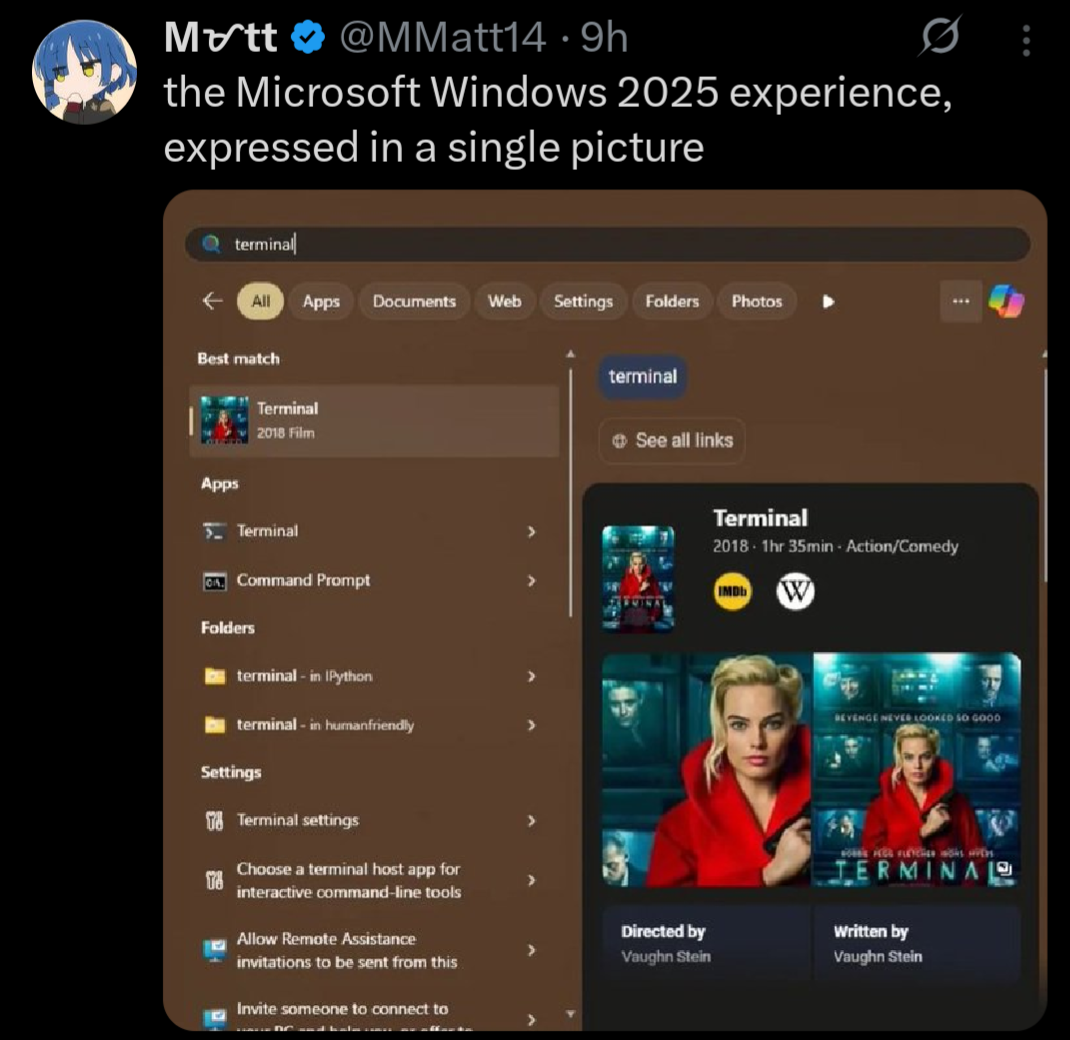
Thankfully, there are easy to access and use tools to completely rid yourself of the bullshit, ads, and telemetry within Windows.
But does it revert after an update
No, I’ve never had that happen. Been running it like this for a few years now between two systems.
Might as well link a few:
However, do note the massive caveat of these tools is that they are proprietary, closed-source tools that must be run with administrative access to your PC, and I have yet to find a satisfactory open-source alternative.
If it works, it works, but I do question the security implications of allowing these tools that level of unfettered access to your system. If possible, I highly recommend giving Linux Mint a try, rather than relying on sketchy tools to debloat a sketchy OS.
I’ve been using Chris Titus’s WinUtil : https://github.com/ChrisTitusTech/winutil
I have no idea if it is open source or not, I’m not really sure how to check that. I’m pretty sure that his utility includes shutup10 within it. Regardless, yeah, I should have linked it. Thanks for the reminder. It’s been a fantastic utility and I’ve been very happy with it. Between that and WinAeroTweaker, I have my system set up pretty much precisely how I want it.
I am so close to jumping on the Linux train though. Not for any usability reasons within Windows, as I said, my install is pretty much perfect for my needs at this point. More of a moral stand against a company which I vehemently disagree with their stance and actions in the world. The only problem I keep coming back to is that 1 or 2 of my games won’t work on Linux due to anti-cheat bs. That’s pretty much my only sticking point now.
Mine too:
FYI, you don’t have to use any third party tools and I didn’t, either. Step 1 is to run the Enterprise LTSC IoT version of Windows (either 10 or 11). The consumer versions of Windows are extra bullshit, as we all know by now.
Remove the Windows Store via Powershell (you probably have to run as an administrator):
Get-AppxPackage -allusers *WindowsStore* | Remove-AppxpackageThat removes the store suggestions. It also removes the store entirely, as well as the ability to install store apps. Obviously don’t do this if you are one of the 0.1% of users who actually use the Windows Store for some twisted reason.
Then in gpedit.msc / Group Policy Editor:
Local Computer Policy \ Computer Configuration \ Administrative Templates \ Windows Components \ Search
Local Computer Policy \ User Configuration \ Administrative Templates \ Start Menu And Taskbar
There are settings for other nags and irritations in here that you may also want to configure to your tastes as well.
Also:
Local Computer Policy \ User Configuration \ Administrative Templates \ Windows Components \ Windows Copilot
This is great advice, but I think we can all agree it absolutely shouldn’t be necessary. All this ad bullshit, store suggestions, Cortana, Copilot, web search, etc. should be opt in, or not exist at all.